This article is written in British English and intended for readers in the UK.
If you want to download a Windows 10 ISO file, this guide provides clear instructions. It explains how to obtain official Windows 10 ISO images directly from Microsoft, covering both 64-bit and 32-bit editions.
The article also outlines Windows 10 system requirements and shares practical guidance on creating a bootable USB drive for installation or recovery.
Direct links for free downloading Windows 10 ISO 64-bit
You can use the following direct links to download Windows 10 ISO files without going through Microsoft's selection process.
An earlier Windows 10 release, version 21H1, is available here:
Download Windows 10 ISO - 21H1 (5.4 GB, hosted on archive.org)
For the most recent Windows 10 release, use the link below:
Download Windows 10 ISO - 22H2 (5.7 GB, hosted on archive.org)
Download Windows 10 ISO 64-bit from Microsoft
The 64-bit Windows 10 ISO file (approximately 5.7 GB) is intended for most modern computers manufactured after 2010. Downloading the ISO directly from Microsoft is free and helps ensure file authenticity and security.
Note: Microsoft officially ended support for Windows 10 on 14 October 2025. Continuing to use Windows 10 may expose your system to increased security risks. You may wish to consider upgrading to Windows 11 - Download Windows 11 ISO.
To download the Windows 10 64-bit ISO from Microsoft, follow these steps:
- Open the Microsoft Windows 10 ISO (Disc Image) download page .
-
Select "Windows 10 (multi-edition ISO)" from the menu and click "Confirm".

-
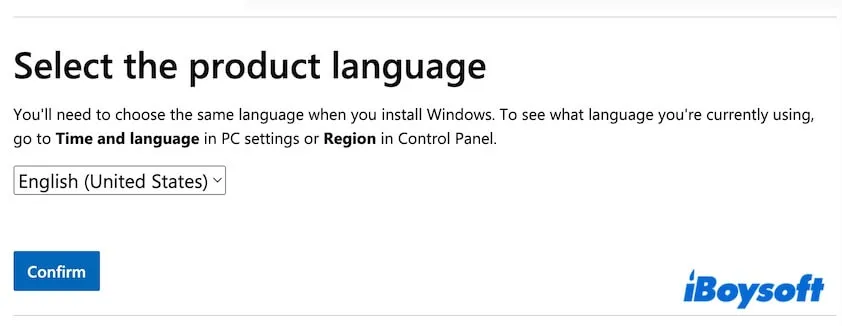
Choose your preferred language and click "Confirm".
-
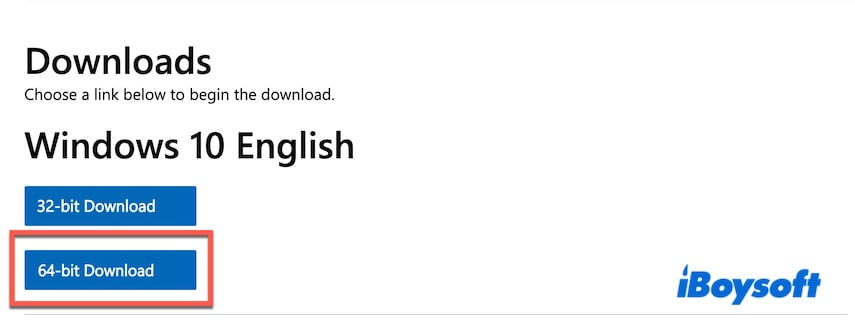
Click "64-bit Download" and wait for the download to complete.
Before installing Windows 10 64-bit, review the following system requirements.
| Processor | 64-bit CPU |
| RAM | 2 GB to 128 GB |
| Application support | Supports both 64-bit and 32-bit applications |
| Installation storage | 32 GB for a clean installation or 20 GB for an existing installation |
| Graphics | DirectX 9 or later with WDDM 1.0 driver |
| Display | 800 × 600 resolution or higher |
| Firmware | UEFI or BIOS |
The Windows 10 ISO provided by Microsoft is a multi-edition image. It includes editions such as Home, Pro, Education, and Enterprise.
During installation:
- Entering a valid product key will automatically install the corresponding edition.
- If no product key is provided, you can still install and use Windows 10 in an unactivated state, although some features will be restricted.
Download Windows 10 ISO 32-bit from Microsoft
The Windows 10 32-bit ISO file (approximately 4.0 GB) is designed for older computers manufactured before 2010.
Follow these steps to download the Windows 10 32-bit ISO directly from Microsoft:
- Visit the Microsoft Windows 10 ISO download page .
- Select "Windows 10 (multi-edition ISO)" and click "Confirm".
- Choose the language you use and click "Confirm".
-
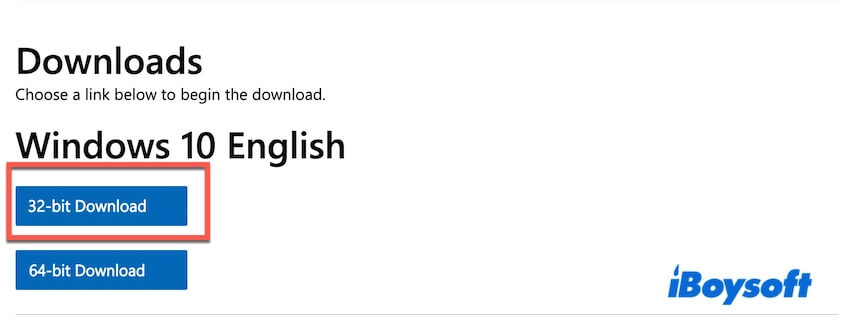
Click "32-bit Download" to begin downloading the Windows 10 ISO.
Before installing Windows 10 32-bit, ensure your system meets the requirements below.
| Processor | 32-bit CPU |
| RAM | Minimum 1 GB |
| Application support | Supports 32-bit applications only |
| Installation storage | At least 16 GB of free disk space |
| Graphics | DirectX 9 or later with WDDM 1.0 driver |
| Display | 800 × 600 resolution or higher |
| Firmware | BIOS or UEFI |
Like the 64-bit version, the 32-bit Windows 10 ISO includes editions such as Home, Pro, and Education. You can select the required edition during installation.
How to create a Windows 10 bootable USB
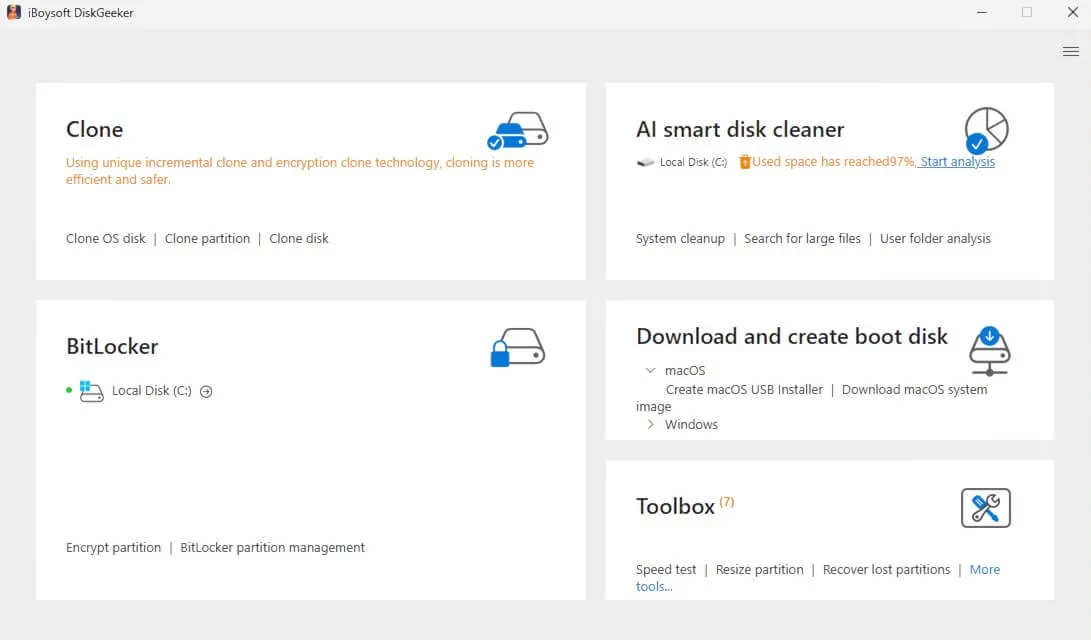
To create a bootable Windows 10 USB for a fresh installation, system recovery, upgrade, or downgrade, you can use iBoysoft DiskGeeker for Windows . This tool simplifies the process and reduces it to a few guided steps.
Here's how:
- Download, install, and open iBoysoft DiskGeeker for Windows.
- Connect an empty USB drive with at least 32 GB of free space.
-
Select Windows > Create Windows OS USB Installer.
- Select the connected USB drive as the target disk.
-
Choose Windows 10 and confirm to start downloading the ISO.
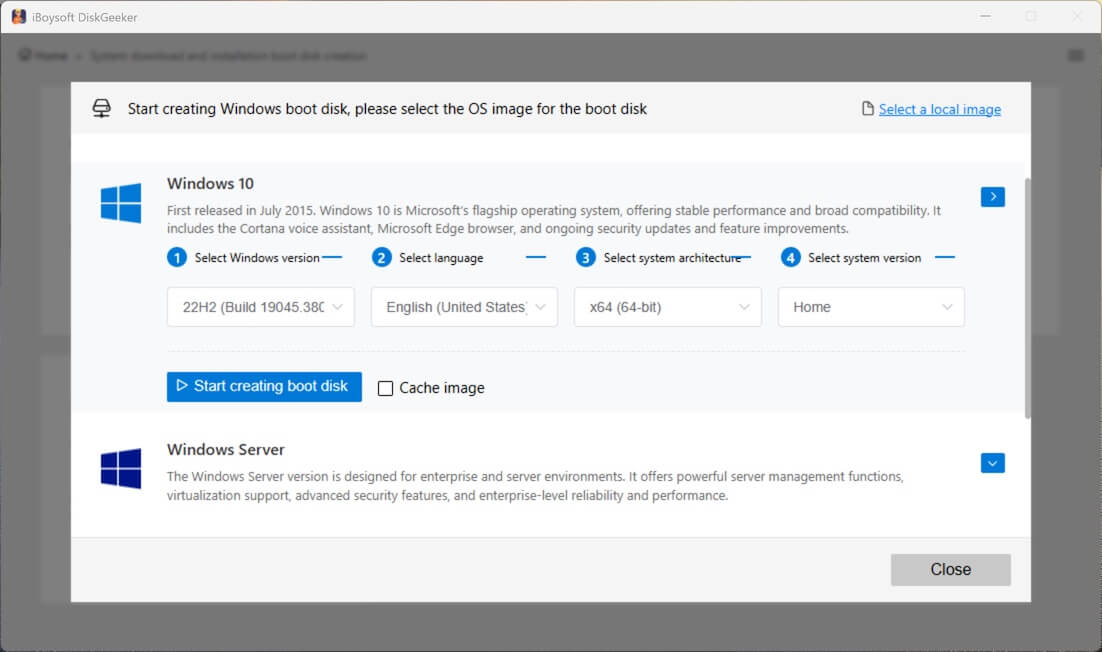
Once the download finishes, the tool will automatically create the bootable USB.
To boot a computer using the Windows 10 USB installer:
- Insert the bootable USB into the computer.
-
Restart the system and press the Boot Menu key:
Dell: F12
HP: F9 or Esc
Lenovo: F12
Acer: F12
ASUS: Esc or F8
MSI: F11
Note: If no Boot Menu is available, enter BIOS/UEFI (usually Delete, F2, or Esc) and adjust the boot order to prioritise USB. - Select the USB drive as the boot device.
- Follow the on-screen instructions to install Windows 10.
If you already have a working Windows 10 computer and only need a bootable copy for recovery or testing on another PC, you can clone the system disk instead.
Using iBoysoft DiskGeeker for Windows , you can create a bootable copy of Windows 10 without additional configuration.
Final words
Windows 10 ISO files are available free of charge from Microsoft. You can download full versions in both 64-bit and 32-bit formats depending on your system requirements.
If your primary goal is to create a Windows 10 bootable USB, downloading the ISO file separately may not always be the most efficient option. Using a cloning tool such as iBoysoft DiskGeeker for Windows allows you to copy the system partition directly from an existing Windows 10 computer.
This approach provides a ready-to-use bootable Windows 10 USB and is generally simpler than the traditional ISO-based method.
Share this guide with anyone looking for reliable instructions on where and how to download Windows 10 ISO files.
FAQs about Windows 10 ISO download
- Q Can I download Windows 10 ISO without a product key?
-
A
Yes. You can download the Windows 10 ISO directly from Microsoft without entering a product key. Windows 10 can also be installed and used without activation, although certain features will be restricted.
- Q Is it possible to get Windows 10 ISO for free?
-
A
Yes. Windows 10 ISO files can be downloaded free of charge from Microsoft or archive.org. While downloading the ISO is free, a valid licence is required to fully activate Windows.
- Q Where can I download an ISO file for Windows 10?
-
A
You can download the Windows 10 ISO file directly from Microsoft's official website.