Summary: This article explains how to download OS X Mavericks ISO, DMG, and full installer files. It also introduces a method to download Mavericks without using the Mac App Store or create a bootable installer.
This article is written in British English and intended for readers in the UK.
OS X Mavericks is the tenth major release of Apple's Mac operating system. Released in 2013, it focused on improving battery efficiency, enhancing Finder functionality, introducing file compression, and strengthening iCloud integration. It was also the first version of OS X offered as a free upgrade, setting the precedent for Apple's free macOS updates.
Although OS X Mavericks is now considered outdated, some users may still wish to download it to retain the Aqua interface style or to run legacy applications. This guide provides access to Mavericks ISO, DMG, and full installer files
Tips: Before starting, it is recommended to review how to download and install macOS properly to avoid interruptions during the process.
If you need OS X Mavericks for use on Windows, refer instead to: Mac OS Download for Windows
Note: The most reliable way to download a bootable OS X Mavericks installer is by using iBoysoft DiskGeeker. This tool offers bootable DMG files for Mavericks and other macOS versions, and it also simplifies the creation of bootable USB installers.
Step 1: Download, install, and open iBoysoft DiskGeeker.
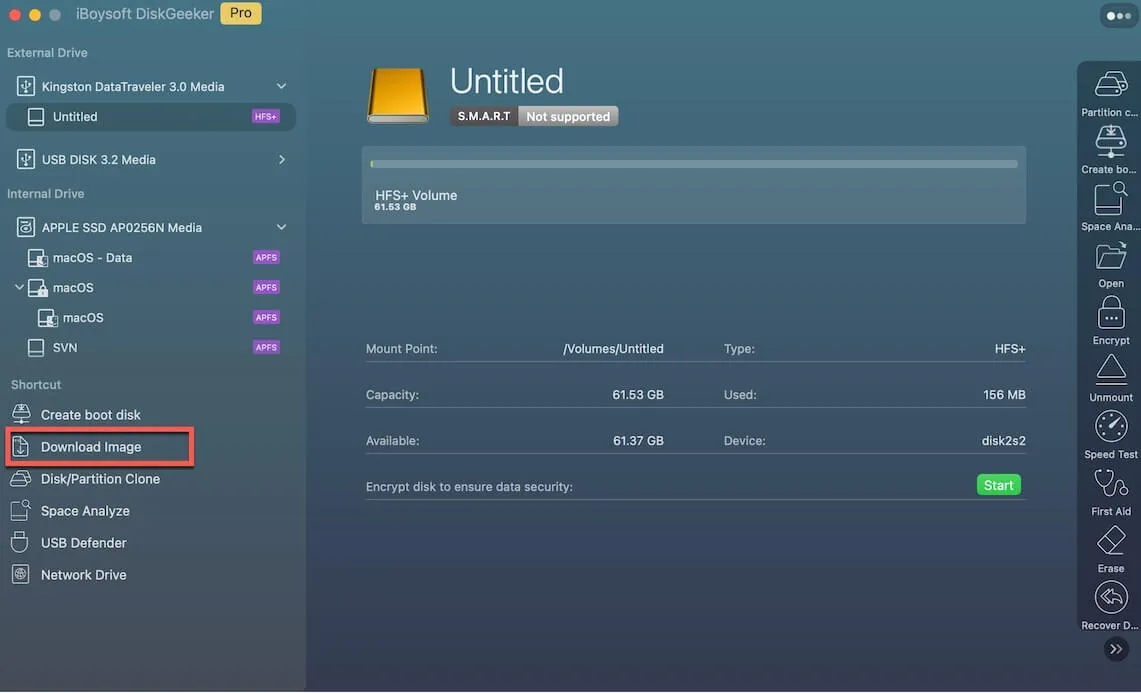
Step 2: From the Shortcut panel, click Download Image.
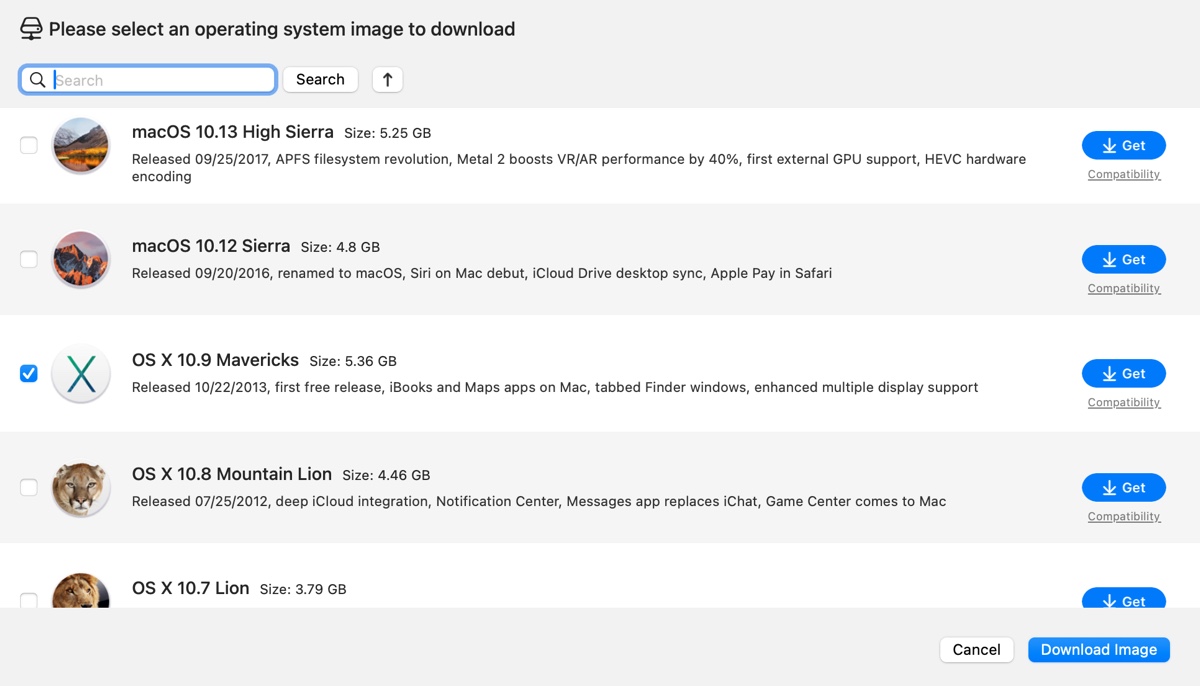
Step 3: Select OS X 10.9 Mavericks and click Get.
Step 4: Wait for the download to complete.
How to download OS X Mavericks installer?
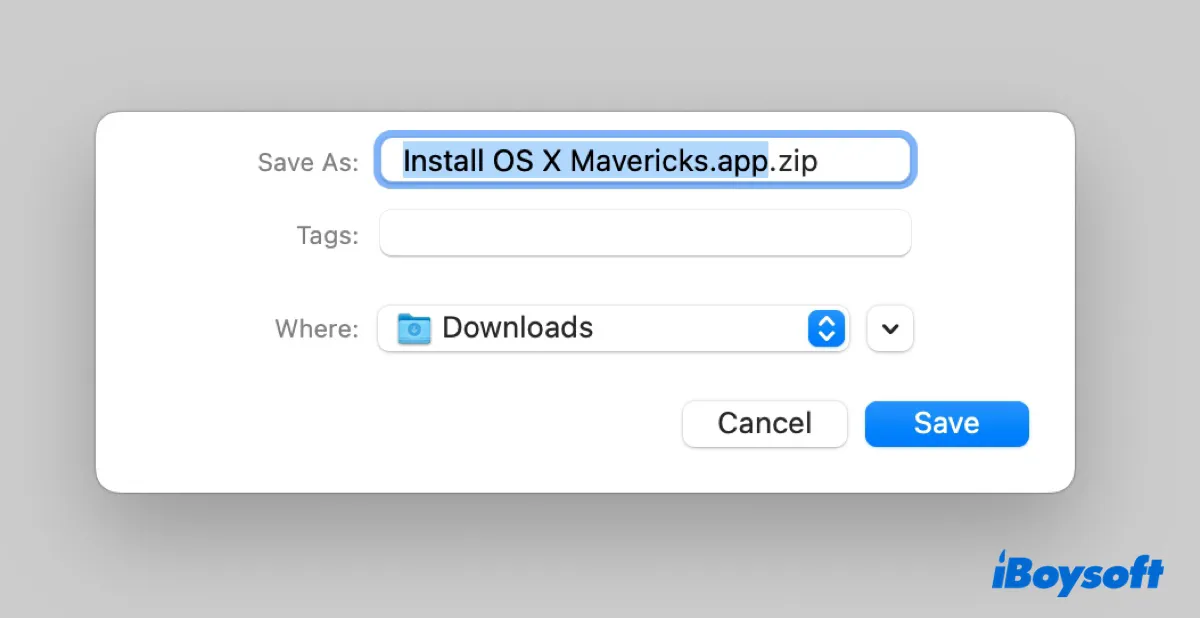
The Mac App Store is the first place to check for the OS X Mavericks installer. You can search for Mavericks to see if it is available. If it does not appear, you can download the installer without using the App Store through the resources listed below. The Mavericks installer is approximately 5 GB in size.
Available sources include multiple archive and mirror links.
OS X Mavericks installer free download (archive.org) link 1
OS X Mavericks installer free download (archive.org) link 2
OS X Mavericks installer free download (archive.org) link 3
OS X Mavericks installer free download (archive.org) link 4
OS X Mavericks installer free download (mega)
If you want access to other macOS installers, see: Free Download macOS Full Installers for Latest & Old Version
Share these Mavericks download links if you find them helpful!
How to download OS X Mavericks DMG?
An OS X Mavericks DMG file is a disk image containing the installer. When mounted, it behaves like a virtual disk, allowing you to extract the installer application and move it to the Applications folder or use it to create bootable media.
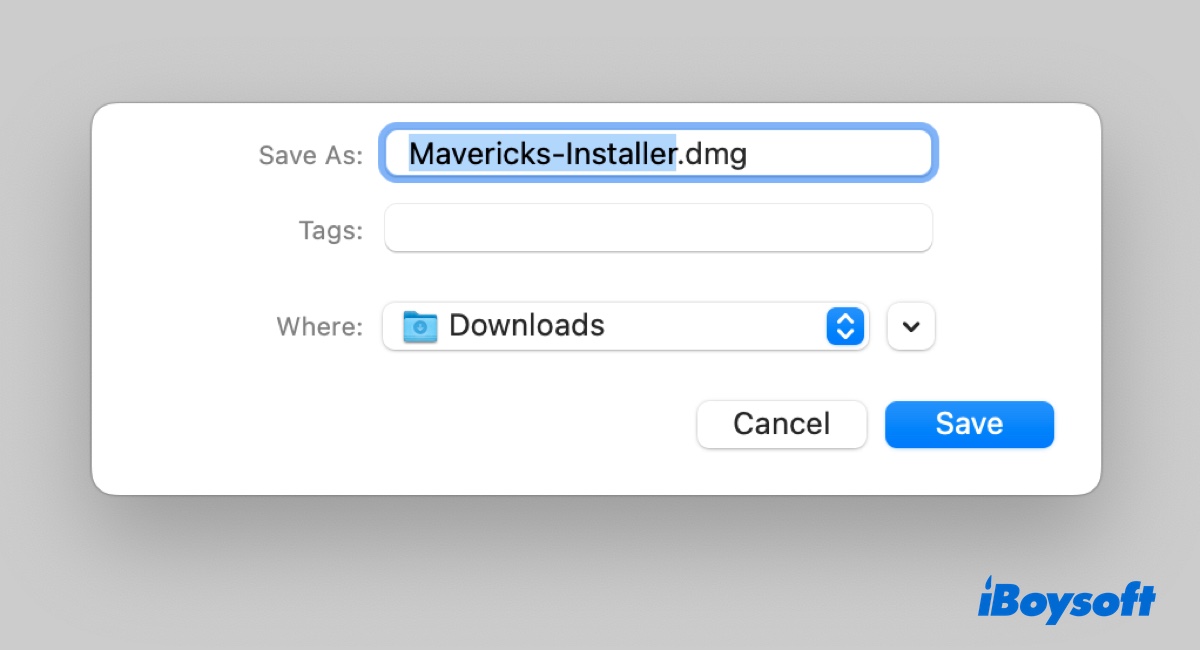
Here are the download links to OS X Mavericks DMG files:
OS X 10.9 Mavericks DMG free download (allmacworlds.com)
OS X 10.9.5 Mavericks DMG free download (allmacworlds.com)
OS X 10.9 Mavericks DMG free download (archive.org) link 1
OS X 10.9 Mavericks DMG free download (archive.org) link 2
OS X 10.9.4 Mavericks ESD DMG (archive.org)
OS X 10.9 Mavericks Install DVD DMG (archive.org)
After downloading the DMG file, double-click it to mount the image, then drag the Install OS X Mavericks application into the Applications folder.
How to download OS X Mavericks ISO?
An OS X Mavericks ISO file contains the full operating system as released, including system components and updates. This format is required if you intend to run Mavericks on a virtual machine such as VirtualBox or VMware.
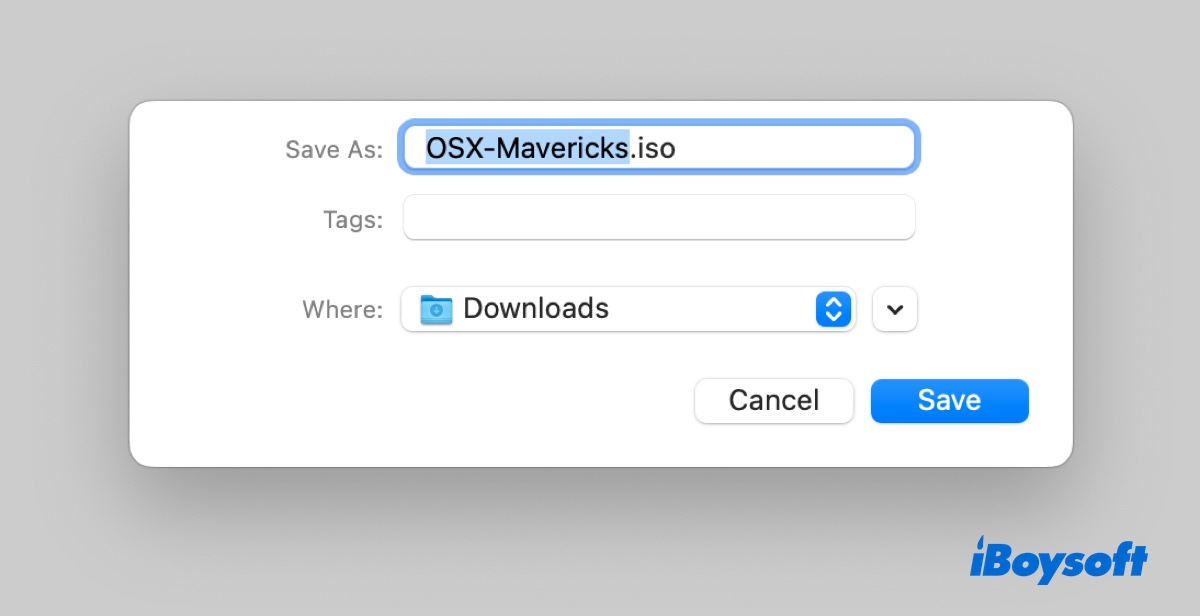
OS X Mavericks ISO Download for VirtualBox/VMware (allmacworlds.com)
OS X 10.9.5 Mavericks ISO download (archive.org)
How to create OS X Mavericks bootable USB installer?
Tips: Manually creating an OS X Mavericks bootable USB installer is complex. For a more efficient process, you can use iBoysoft DiskGeeker as an alternative to DiskMaker X.
Step 1: Install iBoysoft DiskGeeker and launch it.
Step 2: Select Create boot disk from the Shortcut section.
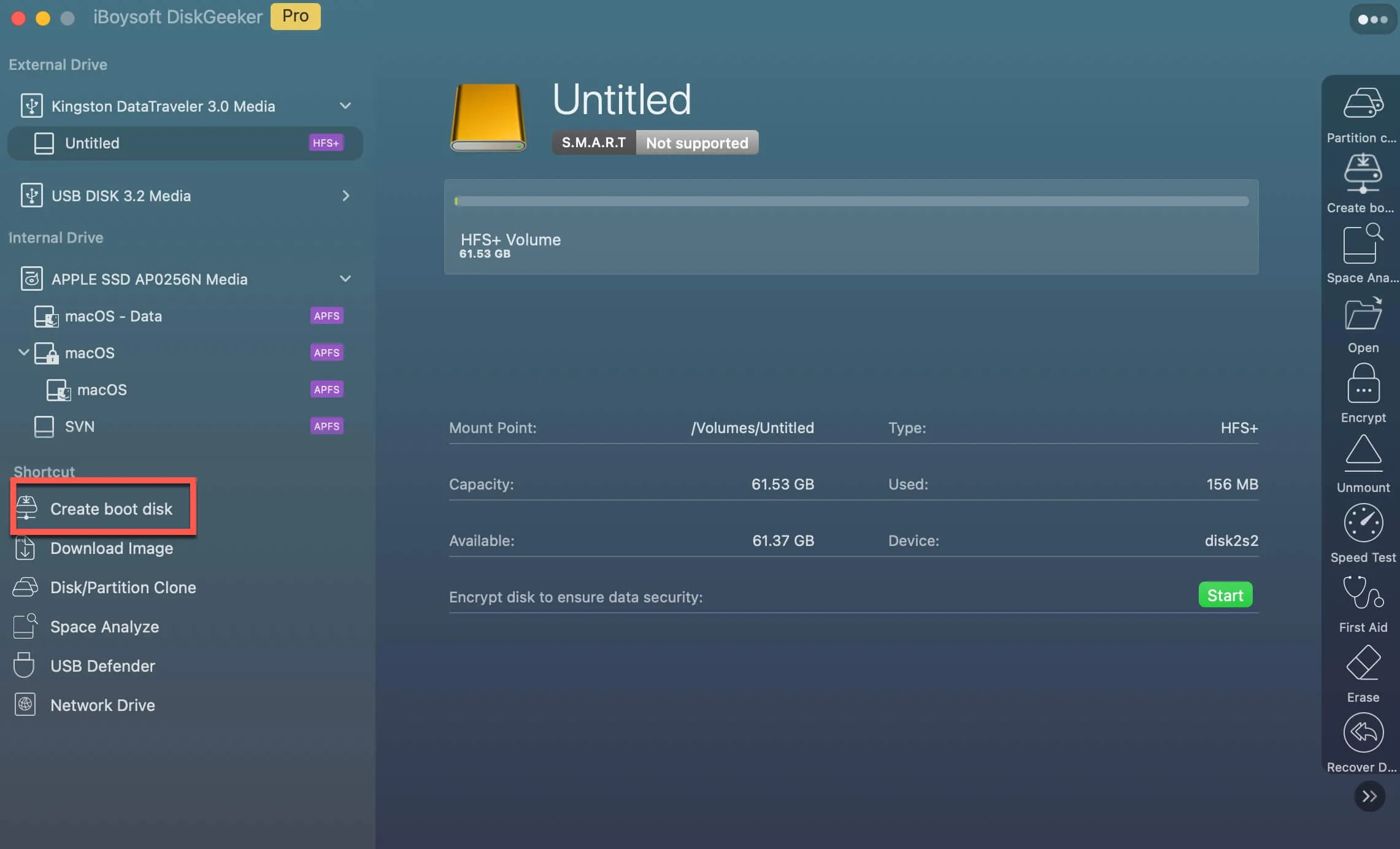
Step 3: Choose your external drive and click Select > Continue.

Step 4: Select OS X 10.9 Mavericks and click Create boot disk.
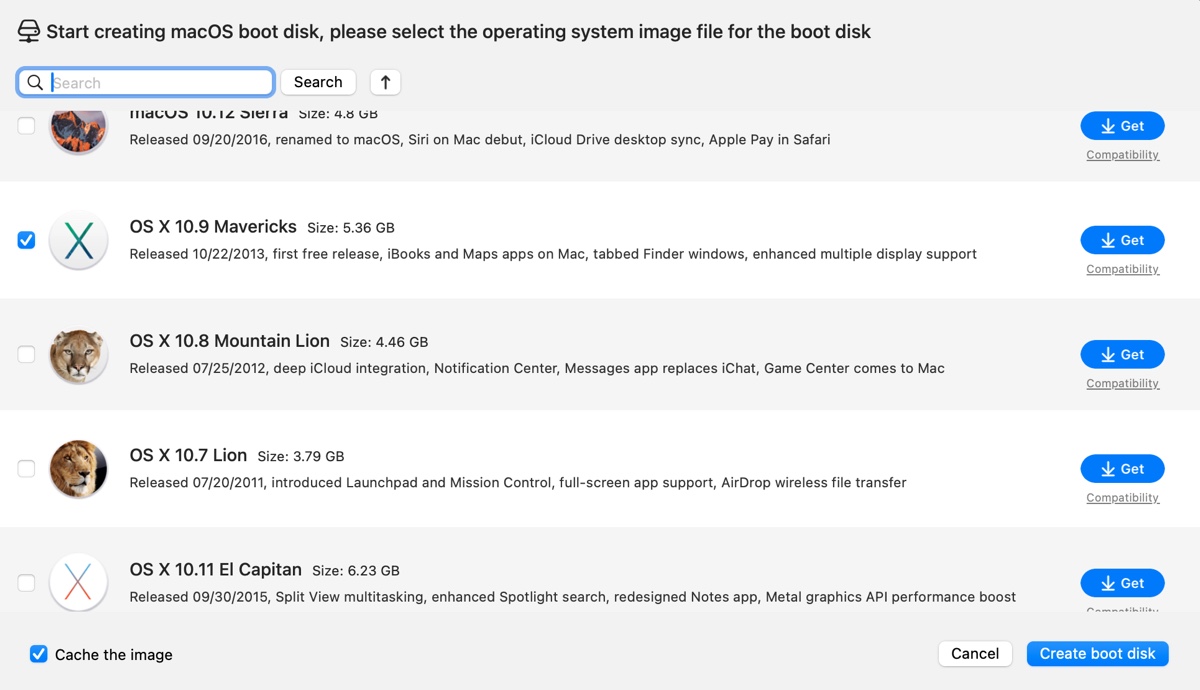
Step 5: Follow the on-screen instructions to finish.
To manually create an OS X Mavericks bootable USB installer, you need a USB or external drive with at least 8 GB of storage (all data on it will be erased), a working macOS system, and the official OS X Mavericks installer.
- Open Disk Utility on your Mac.
- Click View > Show All Devices to display all connected disks and partitions.
- Select the physical disk of your external USB drive and click Erase.
-
Name the drive as desired.
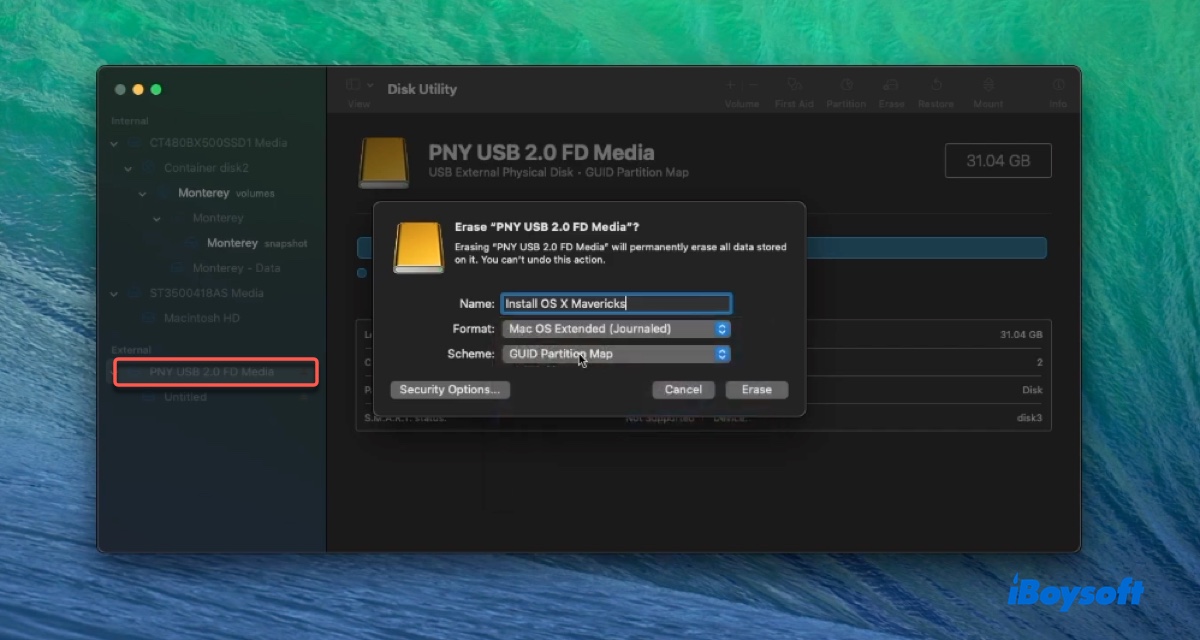
- Choose Mac OS Extended (Journaled) as the format.
- Set the scheme to GUID Partition Map, then click Erase and wait for the process to finish.
- If the Mavericks installer is compressed, double-click it to decompress it.
- Right-click Install OS X Mavericks and choose Show Package Contents.
- Navigate to Contents > SharedSupport > InstallESD.dmg, then double-click it to open.
-
Press Command + Shift + Period to reveal hidden files. If your Mac doesn't support the shortcut, open Terminal, run the following command, then relaunch Finder by clicking the Apple menu, choosing "Force Quit", selecting Finder, and clicking Relaunch.defaults write com.apple.Finder AppleShowAllFiles true

- Locate BaseSystem.dmg, open Disk Utility, select the USB partition, and click Restore.
-
Drag BaseSystem.dmg into the Restore from field and click Restore.
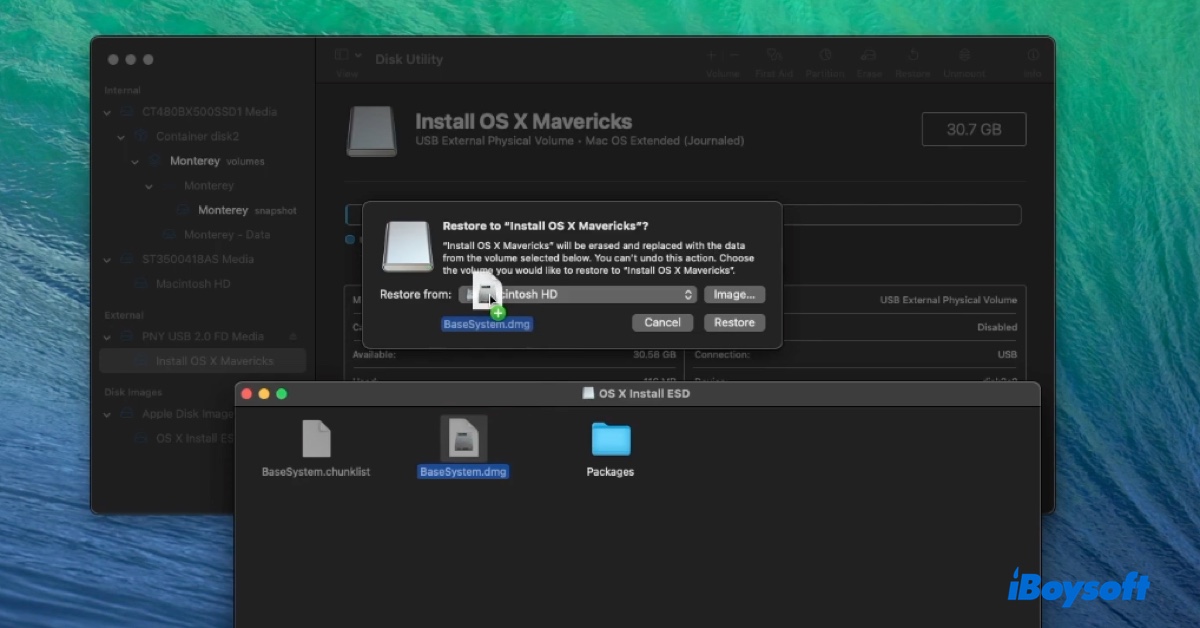
- Once completed, the USB drive will be renamed OS X Base System. You may rename it to Install OS X Mavericks if preferred.
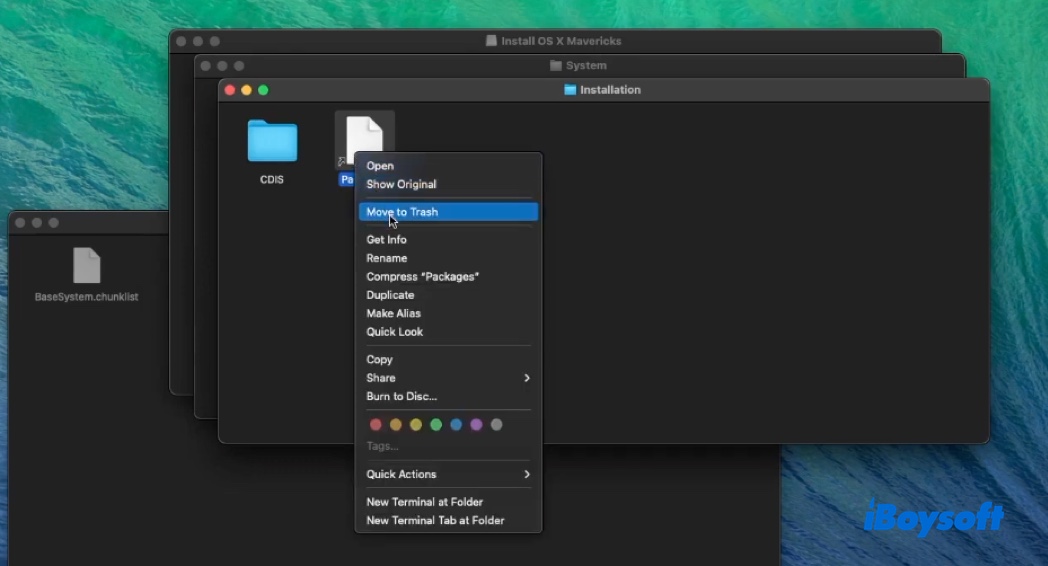
- Open the restored USB drive and navigate to System > Installation.
-
Delete the existing Packages folder.
- Go back to InstallESD.dmg, right-click Install OS X Mavericks, and select Show Package Contents again.
- Navigate to Contents > SharedSupport, then copy the Packages folder.
- Paste this Packages folder into System > Installation on the USB drive.
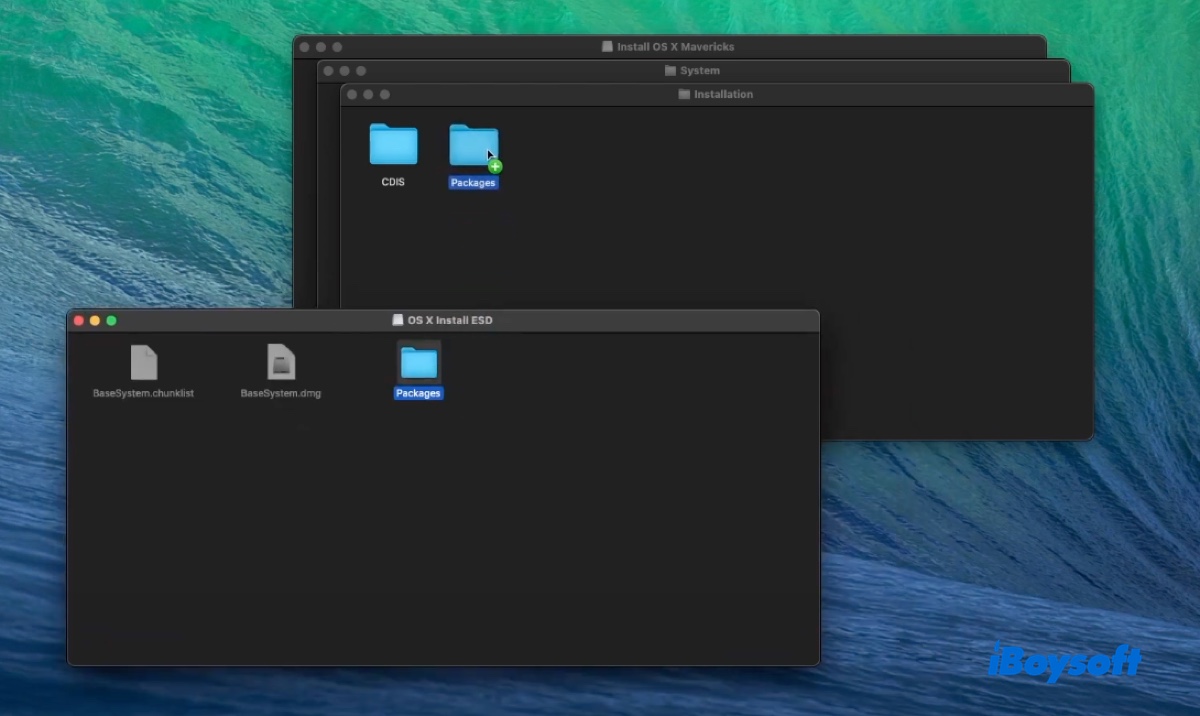
After completing these steps, the external drive will function as a bootable OS X Mavericks USB installer, which you can use to boot a Mac and install Mavericks.
Share the steps to help others create a bootable Mavericks USB installer on Mac.