This article is written in British English and intended for readers in the UK.
Typically, macOS Catalina (10.15) can be found through the Mac App Store. However, it may not appear if your Mac is running macOS Big Sur or later, or if the device is incompatible with macOS 10.15.
This page supplies direct links for downloading the macOS Catalina full installer, the Catalina ISO image and the Catalina DMG file. It also explains how to create a bootable macOS Catalina USB installer, which can be used either to downgrade your Mac or to run Catalina on unsupported hardware. (For the newest release, see: macOS Tahoe Download)
Note: To download macOS Catalina more efficiently, iBoysoft DiskGeeker can obtain the Catalina DMG file at a noticeably faster speed than standard methods.
In addition, the tool allows you to create a macOS Catalina bootable USB installer for unsupported Macs without using Terminal commands.
Create a bootable Catalina installer with iBoysoft DiskGeeker
1. Download, install and open iBoysoft DiskGeeker, then connect a blank USB drive to your Mac.
2. Select a volume on the USB drive and choose Create boot disk > Continue.
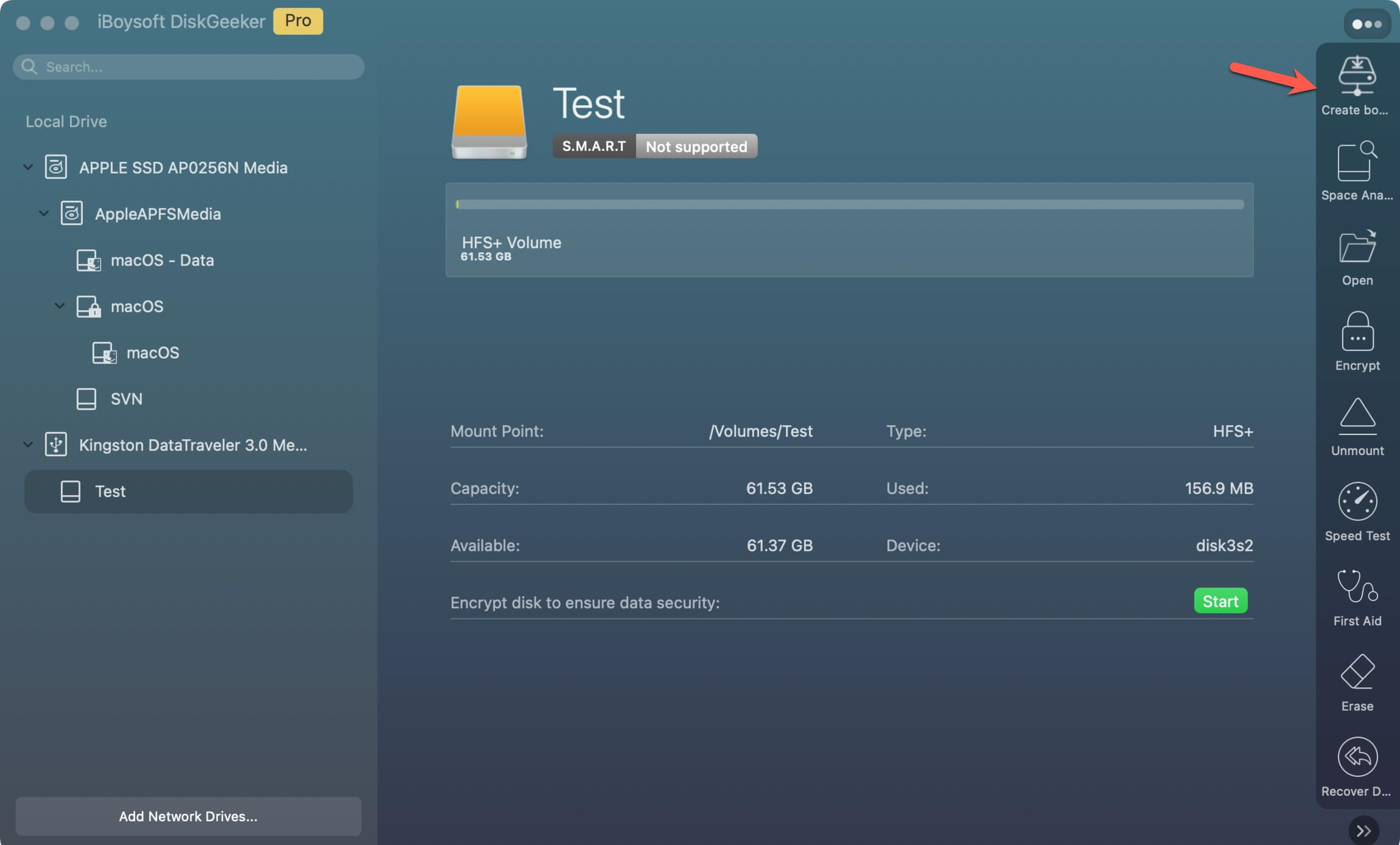
3. Pick macOS Catalina and click Create boot disk > OK to download the Catalina DMG installer.
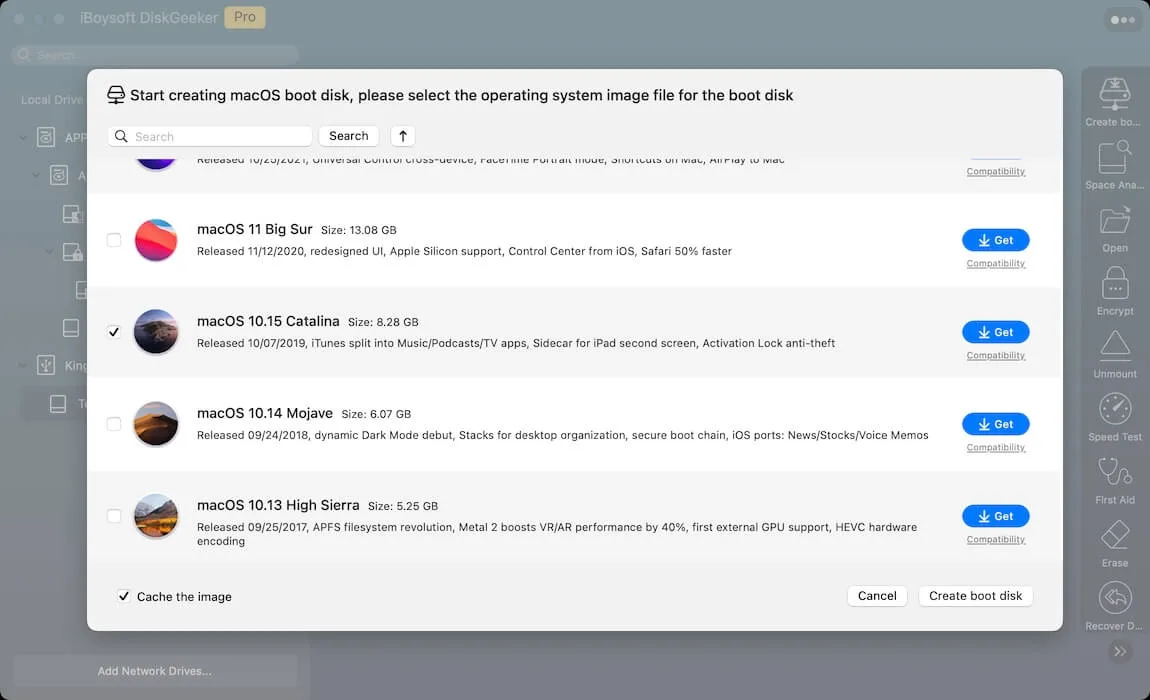
4. When prompted, confirm whether you want to proceed with creating a bootable installer.
If you stop the process, the downloaded macOS Catalina DMG will remain in your Downloads folder.
macOS Catalina full installer vs. DMG vs. ISO (Choose the right format)
Before downloading, it helps to understand the differences between the available installer formats.
macOS full installer: The official .app installer, usually obtained from the App Store and only downloadable on supported Macs.
macOS DMG file: A disk image commonly used to create bootable installers for compatible Macs.
macOS ISO file: An image format mainly intended for virtual machines or for creating bootable media on Windows or unsupported Macs.
Download macOS Catalina from the Mac App Store
If your Mac supports macOS Catalina, you can download it directly from the App Store using the link below. If the Mac is incompatible, an "Update not found" message will appear.
↓ macOS Catalina download (8.26 GB)
Macs compatible with macOS Catalina
- iMac Pro (2017 or later)
- MacBook (2015 or later)
- Mac Pro (Late 2013 or later)
- MacBook Air (Mid 2012 or later)
- MacBook Pro (Mid 2012 or later)
- iMac (Late 2012 or later)
- Mac Mini (Late 2012 or later)
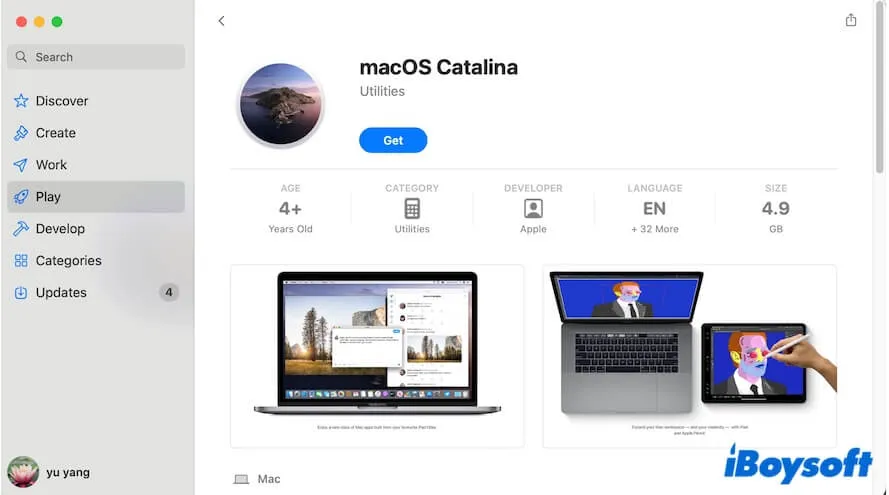
The download may take several hours. During this time, keep your Mac plugged in and prevent the display from sleeping.
Once downloaded, the installer launches automatically. If you are not ready to install Catalina, select Install macOS Catalina > Quit Install macOS from the menu bar. The installer can later be found in the Applications folder.
Download macOS Catalina 10.15.7 update
macOS 10.15.7 resolves issues related to Wi-Fi auto-connection, iCloud Drive synchronisation, and graphics problems on the 27-inch iMac (Retina 5K, 2020) with Radeon Pro 5700 X.
If your Mac is already running macOS 10.15.6, you can download the 10.15.7 update directly, which is significantly smaller than the full installer.
↓ macOS Catalina 10.15.7 update download (2.86 GB)
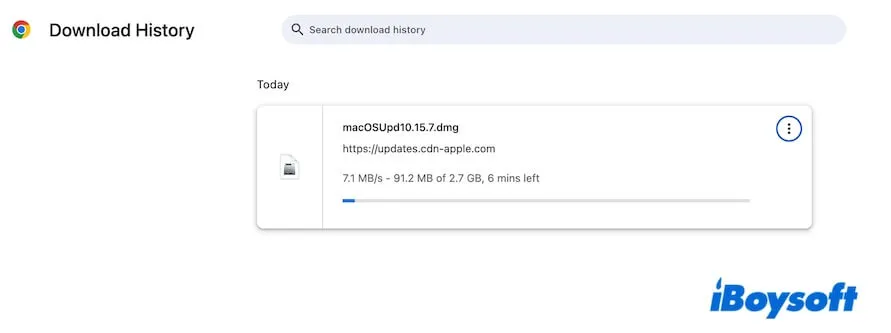
Download macOS Catalina DMG file
If you are unable to use the App Store or need macOS Catalina on a Windows computer, the Catalina DMG file can be downloaded using the link below.
↓ macOS Catalina DMG download (10.15.7, 7.21GB, from MediaFire)
You may also create the DMG manually by following: How to Create a macOS Catalina 10.15 DMG File.
The DMG file is essential for installing macOS Catalina on virtual machines such as VirtualBox or VMware, or for running Catalina on unsupported Macs. It can also be used to create a bootable USB or external drive.
Download macOS Catalina ISO file
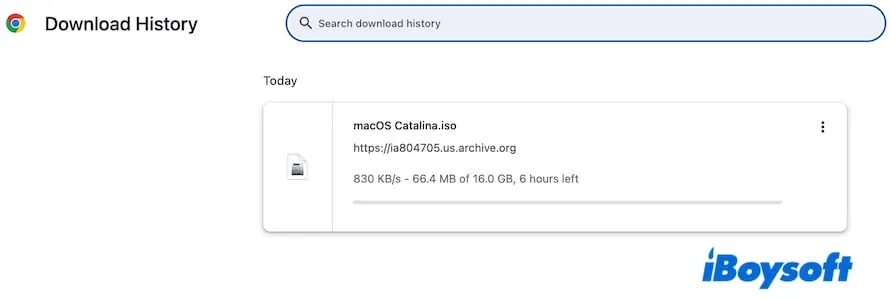
Like the DMG version, the macOS Catalina ISO file is commonly used for virtual machines and for creating bootable installation media.
↓ macOS Catalina ISO download (10.15.7, 16GB, from Internet Archive)
Create macOS Catalina USB installer
After obtaining the installer, you can proceed to create a macOS Catalina USB installer, for example when downgrading from macOS Sonoma to Catalina.
The traditional method relies on Terminal commands and can be complicated. Alternatively, iBoysoft DiskGeeker enables you to build a bootable Catalina installer in just a few clicks, as described earlier.
Create the installer manually (Terminal method)
Preparations:
- A USB drive formatted as Mac OS Extended with at least 32 GB capacity
- An Intel-based Mac (macOS Catalina only supports Intel processors)
Steps:
- Connect the formatted USB drive to the Intel-based Mac.
- Open Terminal from Launchpad > Other.
- Enter the command below, replacing MyVolume with your USB drive name: sudo /Applications/Install\ macOS\ Catalina.app/Contents/Resources/createinstallmedia --volume /Volumes/MyVolume
- Enter your administrator password.
- Confirm the erase warning by typing Y.
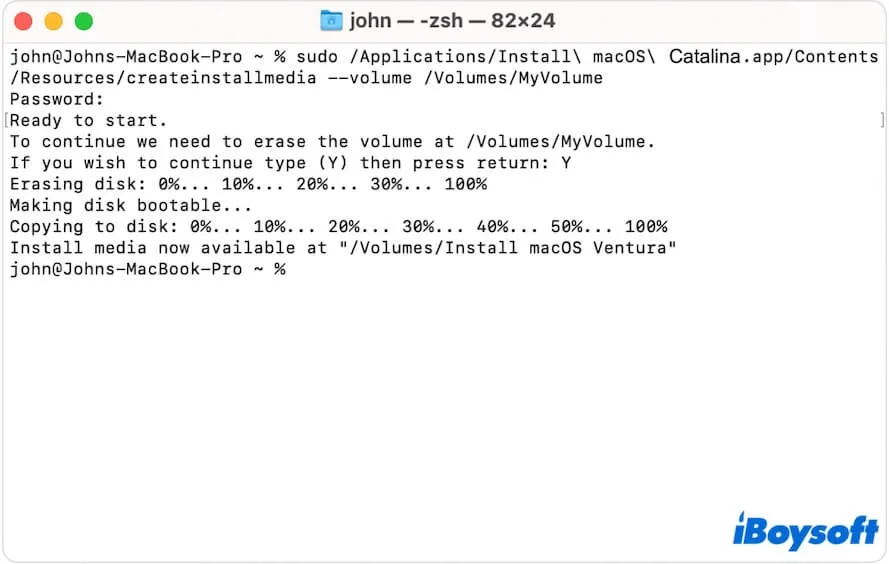
- Wait until the process completes, keeping the Mac powered and awake.
To boot from the USB installer, see: How to Boot Mac from a USB.
If the installer does not boot, see: How to fix the USB Catalina installer not bootable.
Share the step-by-step guide with more people.
Why macOS Catalina cannot be downloaded or installed
Several factors may prevent macOS Catalina from downloading or installing correctly.
1. The Mac is incompatible
Mac models from mid-2012 or earlier do not support Catalina. In this case, the App Store shows "Update not found". You can instead use the DMG or ISO downloads provided above.
2. The Mac uses Apple Silicon
macOS Catalina was designed exclusively for Intel-based Macs. macOS Big Sur is the first release that supports Apple Silicon.
3. Insufficient storage space
Limited storage can cause download failures or slow performance. Clearing unnecessary files may resolve the issue.
Cleaning years of accumulated files manually can be time-consuming. iBoysoft DiskGeeker for Mac can quickly remove junk files such as caches, logs and trash.
You can use iBoysoft DiskGeeker for Mac to clean and optimize your Mac. This disk manager can thoroughly delete junk files from your Mac, such as app cache, system logs, user log files, trash, etc.
Steps:
- Download, install, and open iBoysoft DiskGeeker on your Mac.
- Select the junk files from the scanning results.
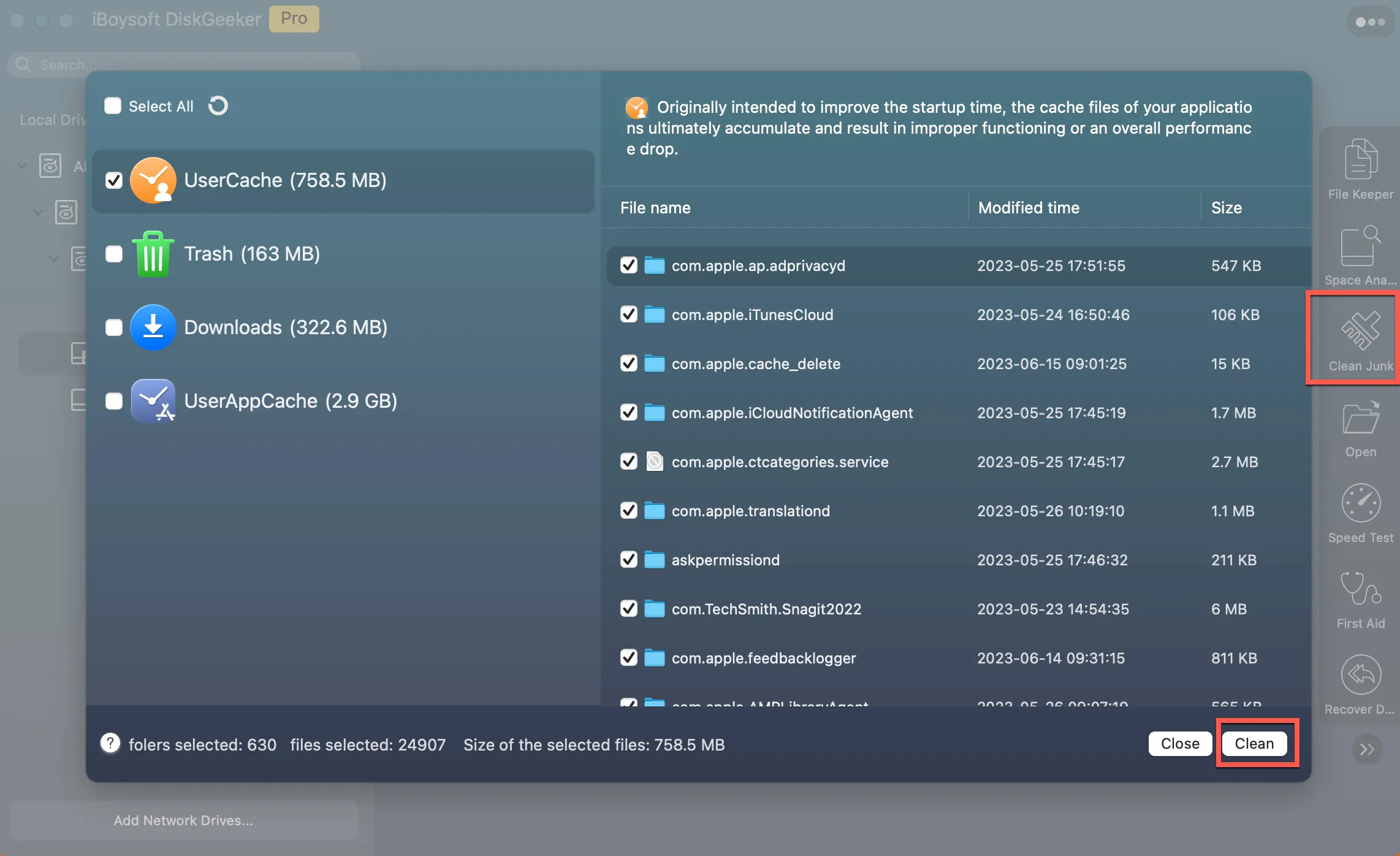
- Click "Clean."
4. Network instability
An unreliable internet connection may interrupt the download. Switching networks or checking Wi-Fi stability can help.
Installation failures may also occur due to:
- Insufficient storage
- Hardware incompatibility
- Power interruptions during installation
- Outdated minor macOS versions
- Running macOS Big Sur or later
If this article helps you, share it with more people.
FAQs about macOS Catalina download
- QHow do I install Catalina on an old Mac?
-
A
To run macOS Catalina on unsupported Macs, OpenCore Legacy Patcher is required.
1. Download OpenCore Legacy Patcher from its official website.
2. Prepare and erase a USB drive as Mac OS Extended (Journaled).
3. Use the tool to create a Catalina bootable installer.
4. Boot the Mac from the USB drive.
5. Install OpenCore Legacy Patcher when prompted, then run macOS Catalina.
- QHow do I download macOS Catalina?
-
A
You can download macOS Catalina from the App Store by searching for it and selecting Get, provided your Mac is compatible.
If your Mac does not support Catalina, iBoysoft DiskGeeker allows you to download the Catalina DMG file directly and create a bootable installer.